
Smart HPrinter Service :ePrint
Pixster StudioBusiness
4.4647.00 Reviews
- Version
- 2.8.0
- Installs
- 1.00M
- Age Rating
- Everyone
Screenshots
Our Review of Smart HPrinter Service :ePrint
 Analysis by Appyee
Printer trouble usually appears at the worst moment: a form needs signing, a school page is due, or a document is sitting on your phone while the printer is across the room. Smart HPrinter Service: ePrint is aimed at cutting out some of that back-and-forth by putting phone-to-printer tasks in one place. I’d judge it less by how many options it promises and more by whether it saves a few fiddly steps when I need a paper copy quickly.
Where the time savings matter
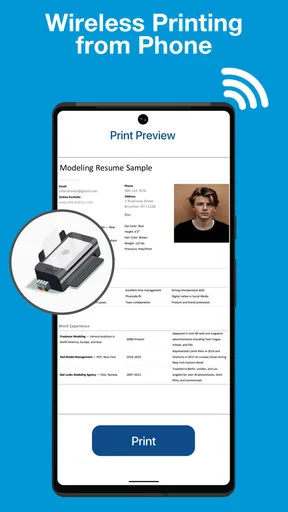
This is a business-category app from Pixster Studio, but the appeal isn’t limited to an office. It can make sense in a home where several people occasionally need to print, or for someone who handles paperwork from a phone more often than from a computer. The key convenience is having a route from a mobile document to a printer without first moving the file to a laptop or hunting for a cable.
A practical example: I’m leaving for an appointment and realize the confirmation or a form is only on my phone. Instead of forwarding it to myself, opening a computer, and finding the file again, I can try sending it from the mobile device. That is a small saving, but it matters when the alternative is several interruptions. For occasional printing, convenience like this can be more valuable than a long list of advanced controls.
What to check before relying on it
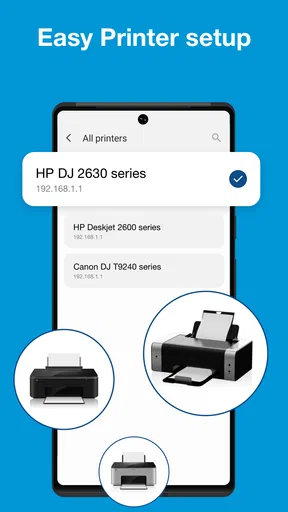
Printer compatibility is the first question I’d settle. The app is intended to connect with HP printers and also names Canon, Epson, and Brother support, but a brand name alone does not guarantee that every model or network setup will behave the same way. Before building a routine around it, I’d test the exact printer and phone combination with a low-stakes page. That quick check is more useful than discovering a connection issue just before a deadline.
It’s also worth separating phone convenience from printer readiness. An app can help send a job, but it cannot make a powered-off printer, an empty paper tray, or a disconnected home network ready. I’d check that the printer is awake, loaded, and reachable before troubleshooting the app. That order prevents a simple hardware problem from turning into an unnecessary reinstall or repeated taps.
Making mobile printing fit into real routines
In the wider mobile-printing category, the usual alternatives are a printer maker’s own app, a built-in print option on the phone, or sending the file to a computer first. A manufacturer’s app may be the better pick when you want tools closely tied to one printer model. Built-in printing can be simpler if it already recognizes your printer and your needs are basic. Smart HPrinter Service: ePrint is most appealing when a single mobile app is a more convenient place to start, especially if the household has printers from supported brands.
Getting Started with Ease
The first thing I noticed when diving into the Smart HPrinter Service: ePrint was how user-friendly it is. The setup is a breeze. You download the app, connect it to your printer, and you’re pretty much set. There’s no need to fiddle with complicated settings or go through endless menus. It’s all about simplicity here, which is a huge relief for someone like me who isn’t exactly a tech wizard.
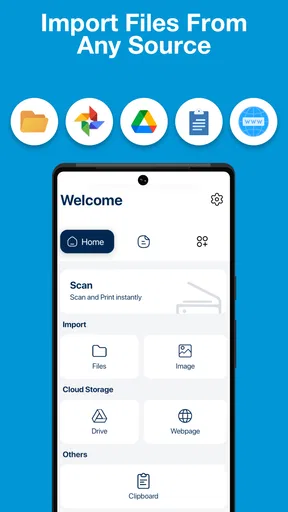
Once you’re in, the app offers a clean interface that’s easy to navigate. Everything is laid out intuitively, so you’re not left scratching your head trying to find the feature you need. Whether you’re looking to print a document from your phone or scan something directly to your email, it’s all just a few taps away.
For a first test, I’d choose a plain, short document rather than a photo or a multi-page file. A simple page makes it easier to tell whether the printer is found, the connection is stable, and the output is usable. If it works, try a second task that matches what you actually do, such as printing a webpage or capturing a paper note. This is a useful way to learn the routine without wasting paper on trial-and-error jobs.
Features that Stand Out
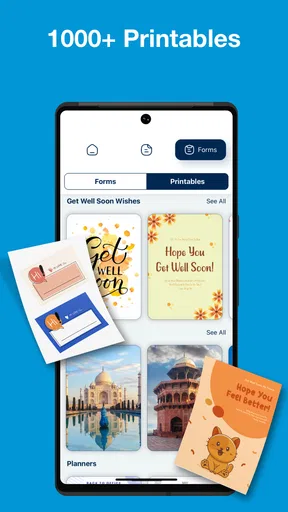
Now, let’s talk features. This app isn’t just about printing; it feels more like a command center for all your printing needs. You can print photos, documents, or even webpages directly from your device. The quality is top-notch, and I didn’t encounter any issues with formatting or alignment.
One of the features I found particularly nifty is the remote printing capability. You can send a print job to your printer from virtually anywhere. So, if you’re chilling in a café and remember you need to print that report, you can do it right from your phone, and it’ll be ready when you get home.
Remote printing is most useful when the file is already final and someone can deal with the printer at the other end. I wouldn’t treat it as a promise that a page will be waiting perfectly printed: paper, ink, printer state, and network access still matter. For a deadline-sensitive document, I’d send it early enough to check the result rather than assuming a job sent from elsewhere has completed exactly as expected.
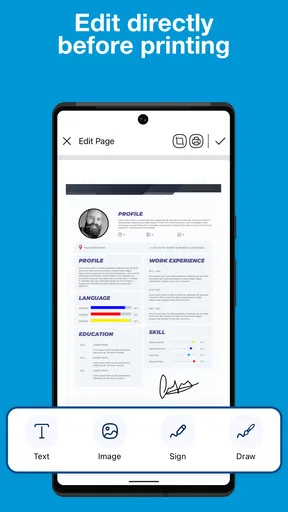
For households that share a printer, a little file preparation can save more time than any extra tapping. I’d give documents clear names before sending them, especially if several files are open or a print job may be handled by someone else. For a webpage, I’d also review the page on the phone first; web layouts can include menus, sidebars, or other material that is useful on screen but wasteful on paper. A quick preview, where available, helps avoid printing a long page just to get one detail.
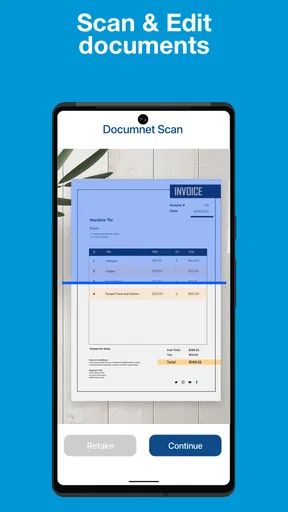
The app also boasts some cool scanning features. You can scan documents directly to your device, which is perfect if you’re trying to go paperless or just need a digital copy of something in a hurry. Plus, you can save these scans in various formats, making it super versatile.
Scanning is especially handy for one-off paperwork: a signed page, a receipt you need to keep, or a note that would otherwise get lost in a bag. I’d use it as a convenient capture step, then check the saved result before throwing away the original. A scan that is cut off, faint, or hard to read defeats the point, so reviewing the file on the phone is a sensible habit. If you regularly need searchable records, careful naming and sorting outside the scan itself will also matter.
Performance and Reliability
Performance-wise, the Smart HPrinter Service: ePrint is pretty impressive. I didn’t experience any lag or crashes during my time with it. It’s quick to respond, and print jobs go through smoothly without a hitch. The app even keeps you updated with notifications, so you know exactly what’s happening with your prints.
Another thing worth mentioning is the reliability of the connection. I’ve used other printing apps in the past that constantly drop the connection, but that wasn’t the case here. Once connected, it stays connected, which is a huge plus in my book.
My practical advice is to distinguish a slow printer from a failed app connection. If a job seems stuck, I’d check the printer itself before sending the same file repeatedly; duplicate copies are an easy way to waste paper and ink. If the printer is available but the job still does not move, restarting the print attempt only after checking its status is a calmer approach than tapping repeatedly and hoping. For important work, a single test page early in the day is a better reliability check than a last-minute full batch.
Who Will Love This App?
If you’re someone who frequently needs to print, scan, or manage documents on the go, this app is definitely worth checking out. It’s great for professionals who need to handle documents remotely or anyone who just wants a more efficient way to manage their printing needs.
It’s also perfect for students. Imagine being able to print your assignments directly from your phone or scan lecture notes to your tablet without any hassle. It’s a game-changer for those hectic school days.
I can also see it fitting a small home business that prints occasional invoices, forms, or reference pages from a phone. It is less compelling for someone who prints large batches every day and depends on fine control over paper sizes, color management, finishing, or job queues; a computer workflow or the printer maker’s own software may suit that work better. Likewise, if your printer is not among the supported brands or does not connect reliably to your network, the app is not a shortcut around that underlying mismatch.
For a shared family printer, agree on a simple routine: check the selected printer, confirm paper is available, and send one document at a time when the output matters. That is not glamorous, but it reduces confusion when several people use the same device. For a student, the best routine may be different: scan notes soon after class, inspect the image, and give it a useful filename so it can actually be found later. The app’s value comes from fitting these small steps into a phone-based habit, not from replacing good file organization.
Cost, fit, and the final call
The app is free to install and is rated for Everyone, which makes it easy to try for basic household or school tasks. It has a 4.4 average from around 52,000 ratings, and has been installed over a million times. There are in-app purchases, ranging from $4.99 to $69.99 per item, so I’d look carefully at what is offered before paying; a free starting point does not mean every option is included at no cost. The current version is 2.7.7, and it requires Android 8.0 or later.
Those details make the decision fairly straightforward: try it first with the exact printer and a task you genuinely need, then decide whether the routine is useful enough to keep. If the phone already prints smoothly through the system tools or your printer maker’s app, switching may not remove enough friction to justify another app. If you regularly move between documents, photos, webpages, and quick scans, having those tasks gathered in one mobile workflow may be worthwhile.
Final Thoughts
All in all, the Smart HPrinter Service: ePrint is a solid choice for anyone looking to simplify their printing tasks. It’s packed with useful features, easy to use, and delivers reliable performance. Whether you’re at home or on the go, this app makes printing and scanning a breeze. So, if you’re tired of wrestling with your printer, give this app a shot and see the difference it can make.
My recommendation is measured rather than universal: it is worth trying when your printer is compatible and your main goal is getting everyday files from phone to paper with less setup. I would skip it if you need a guaranteed fit for a specialized printer workflow, or if the built-in option you already use is dependable and simple. The best test is a real but non-urgent print and scan; if both feel straightforward, the time saved on the next form or assignment is the reason to keep it.
Verdict
Strengths of Smart HPrinter Service :ePrint
- Easy setup with intuitive interface.
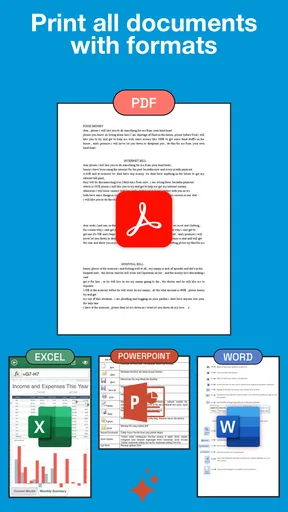
- Supports a wide range of file formats.
- Seamless wireless printing feature.
- Compatible with most printer models.
- Regular updates improve functionality.
Limitations of Smart HPrinter Service :ePrint
- Occasional connectivity issues.
- Limited customer support options.
- Requires stable internet connection.
- In-app purchases can be expensive.
- Some features require account login.
Other Releases by Pixster Studio
View All
Captions AI: Videos Subtitles
Video Players & Editors4.6
Similar Picks in This Category
View All
LinkedIn: Community & Network
LinkedIn3.8

Zoom Workplace
zoom.com4.1

Microsoft Teams
Microsoft Corporation4.6

Meta Business Suite
Meta Platforms, Inc.4.6

Webex Meetings
Cisco Systems, Inc.4.5

TeamViewer Remote Control
TeamViewer4.4
Frequently Asked Questions
What is Smart HPrinter Service: ePrint and how does it work?
Smart HPrinter Service: ePrint is an app designed to simplify wireless printing from your Android or iOS device. By connecting your smartphone or tablet to a compatible printer, you can easily send documents, photos, and other files for printing without needing to physically connect your device to the printer. The app utilizes Wi-Fi networks to facilitate seamless communication between your device and the printer.
Is Smart HPrinter Service: ePrint compatible with all printers?
The app is compatible with a wide range of printers, particularly those that support wireless printing and are from the same manufacturer as the app. However, it’s essential to check the app’s compatibility list on the official website or app store description to ensure your specific printer model is supported before downloading.
What types of files can I print using the Smart HPrinter Service: ePrint app?
Smart HPrinter Service: ePrint supports a variety of file formats, including PDFs, Word documents, Excel spreadsheets, and standard image files like JPEG and PNG. This versatility allows you to print almost any document or photo directly from your mobile device, making it convenient for both personal and professional use.
Does Smart HPrinter Service: ePrint require an internet connection to function?
While the app primarily uses Wi-Fi to connect your device to the printer, it does not necessarily require an internet connection if both devices are on the same network. However, an internet connection might be needed for accessing cloud storage services or downloading updates to ensure optimal performance.
Are there any costs associated with using Smart HPrinter Service: ePrint?
The app itself is typically free to download and use. However, there might be additional costs if you choose to access premium features or services, such as advanced editing tools or cloud storage integration. It’s advisable to review any in-app purchases or subscription options listed in the app store to understand potential costs.
